
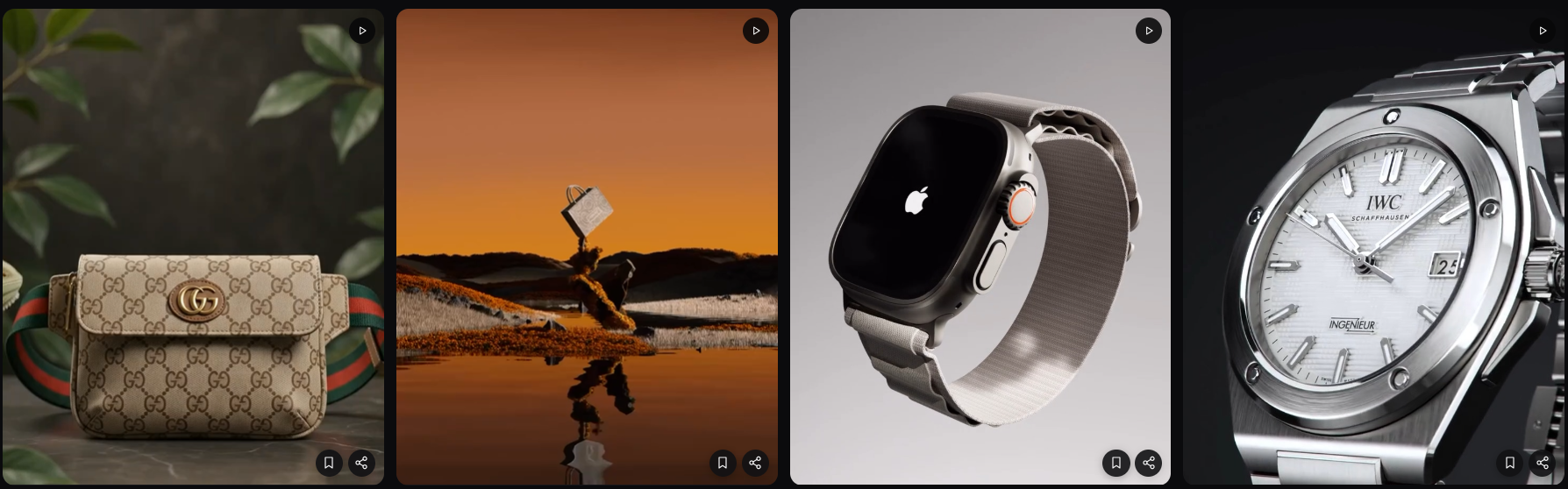
Creating a great AI image or video often starts with an idea. The harder part is turning that idea into a prompt that gives an AI model enough direction to create something close to what you imagined.
Pinitup is designed to make that process easier.
Instead of starting with an empty prompt box, you can explore visual ideas, find a creative direction you like, understand the prompt behind it, customise important elements and copy the finished prompt into your preferred AI generation tool.
In this guide, we'll walk through how to use Pinitup from finding your first idea to copying a prompt that's ready to use.
1. Start with what you want to create
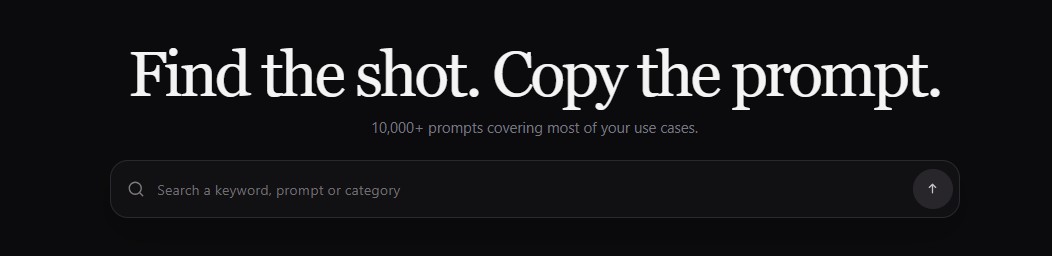
When you open Pinitup, the easiest place to begin is the search bar.
You don't need to know the exact AI terminology or write a perfect prompt. Just describe the kind of result you're looking for.
For example, you could search for:
- luxury jewellery photography
- cinematic perfume advertising
- fashion editorial portrait
- skincare product photography
- food advertising
- social media product ads
- cinematic AI video ideas
Think about the creative result first. Pinitup can help you discover how that result might be translated into a more detailed AI prompt.
2. Explore visual ideas instead of starting from a blank prompt
One of the main ideas behind Pinitup is simple: it is often much easier to decide what you want when you can actually see it.
Browse the prompt cards and look for an image or video that has the type of composition, lighting, product treatment, styling or overall creative direction you're interested in.
You don't have to find something that matches your idea perfectly.
A useful reference might only contain one element you want to borrow, such as:
- the lighting style
- the camera angle
- the model pose
- the way a product is positioned
- the background treatment
- the overall advertising concept
- the mood or colour palette
The goal is to find a strong creative starting point rather than inventing every detail from scratch.
3. Narrow down what you're looking for
Pinitup also gives you discovery controls to help you move through the prompt library more efficiently.
You can explore collections, select relevant tags, switch between different media types and change the way results are sorted.
This becomes particularly useful when you already know the broad category you're interested in.
For example, instead of browsing everything, you might want to focus specifically on jewellery, product advertising or another creative area.

4. Open a prompt you like
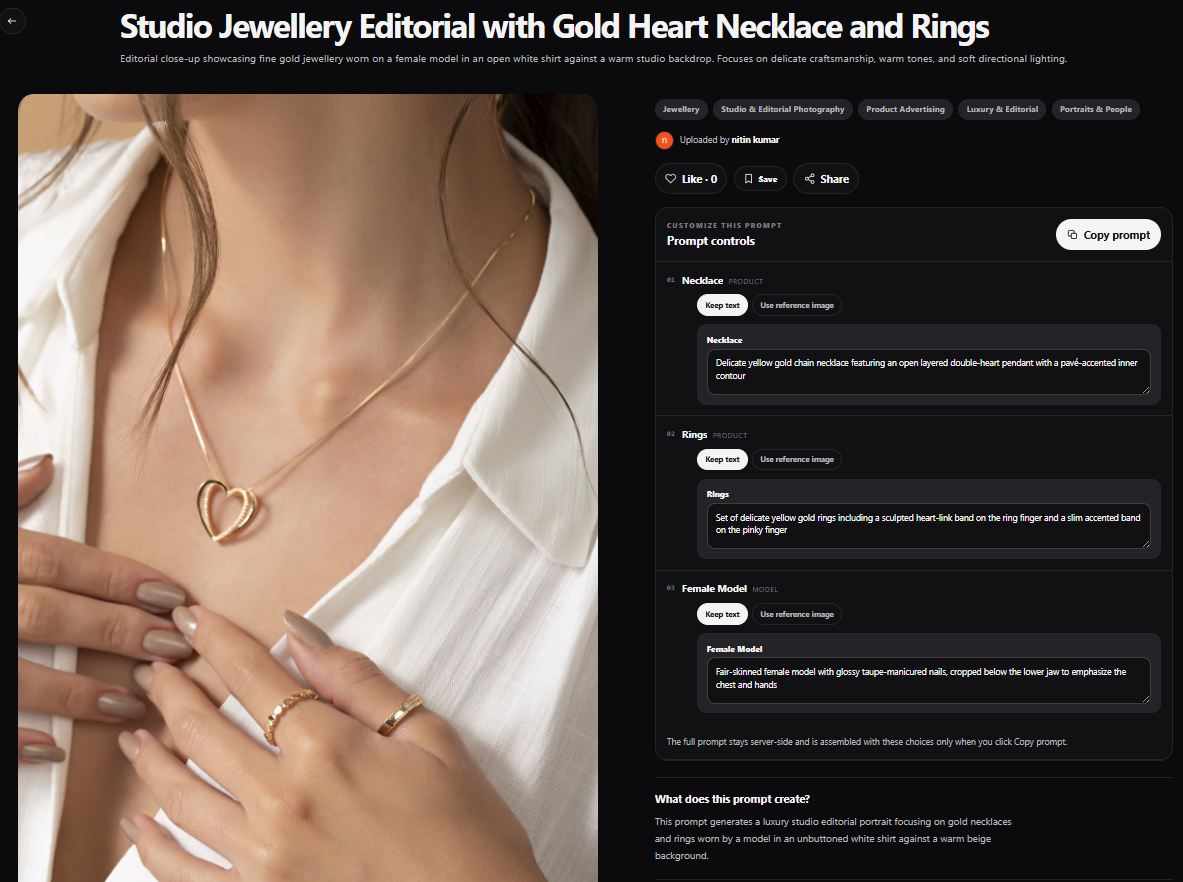
When a visual catches your attention, open it to see the full prompt page.
The reference image or video remains an important part of the experience because it lets you understand what the prompt is trying to achieve.
Rather than reading a long piece of prompt text in isolation, you can compare the instructions with the visual result.
Pay attention to the relationships between the two.
For example:
- How tightly is the subject cropped?
- Where is the main product positioned?
- Is the composition symmetrical or intentionally off-centre?
- Where are the brightest highlights?
- How does the background contrast with the subject?
- What small styling details make the image distinctive?
These details can often have as much impact on the final generation as the main subject itself.
5. Customise the parts that matter
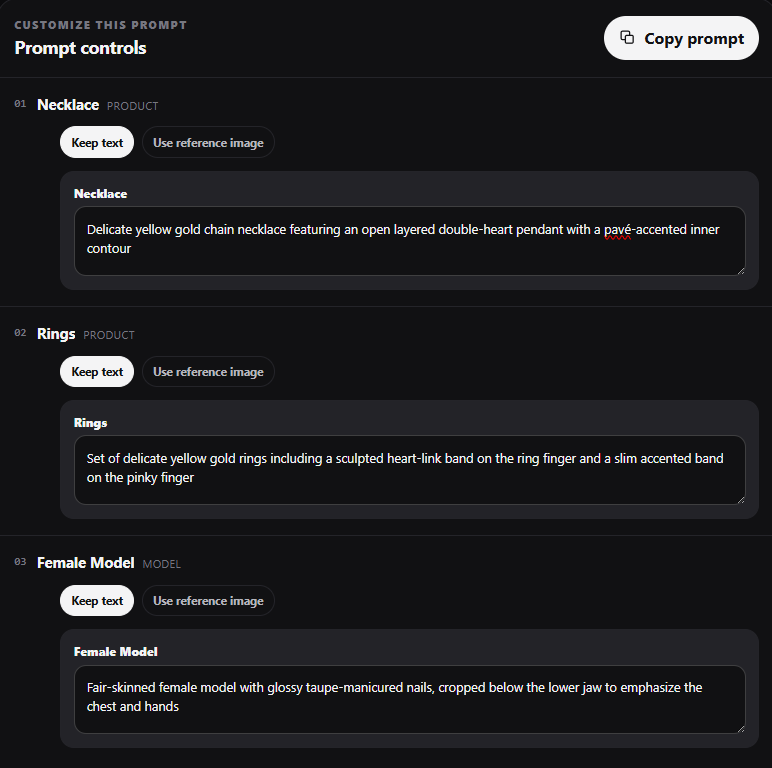
Some Pinitup prompts include a Customize section.
This allows you to change selected parts of the prompt without having to rewrite the entire thing yourself.
Depending on the prompt, customisable elements can include:
- Product
- Model
- Main colour
- Background
- Text
The important difference is that Pinitup keeps the rest of the creative direction intact.
Details such as lighting, camera direction, composition and styling can remain fixed while you change the element that's relevant to your own project.
Imagine you've found a luxury jewellery photograph with exactly the lighting and composition you want, but you're creating an advert for a different product.
Rather than removing all the useful detail and starting again, you can change the product while retaining the art direction that made the original idea interesting.
6. Use your own reference images when available
Certain prompts can also support reference-image choices for elements such as a product or model.
This is useful when you like the creative direction of an existing prompt but want the generation to use something specific to you.
For example, you might want to take the composition and lighting from an existing jewellery campaign concept while using an image of your own necklace as the product reference.
When a reference option is available, Pinitup structures the final prompt so that the reference image has a clear role.
This helps avoid situations where an AI model receives several references but doesn't understand which image belongs to which element in the prompt.
7. Copy the finished prompt
Once you're happy with the creative direction and any customisations you've made, select Copy Prompt.
Pinitup produces the finished prompt as natural text that you can paste into the AI generation platform you want to use.
You can then generate the result, review what the AI created and adjust your approach if necessary.
AI generation still involves experimentation. Even a detailed prompt can be interpreted differently by different models.
Pinitup's job is to give you a much stronger starting point.
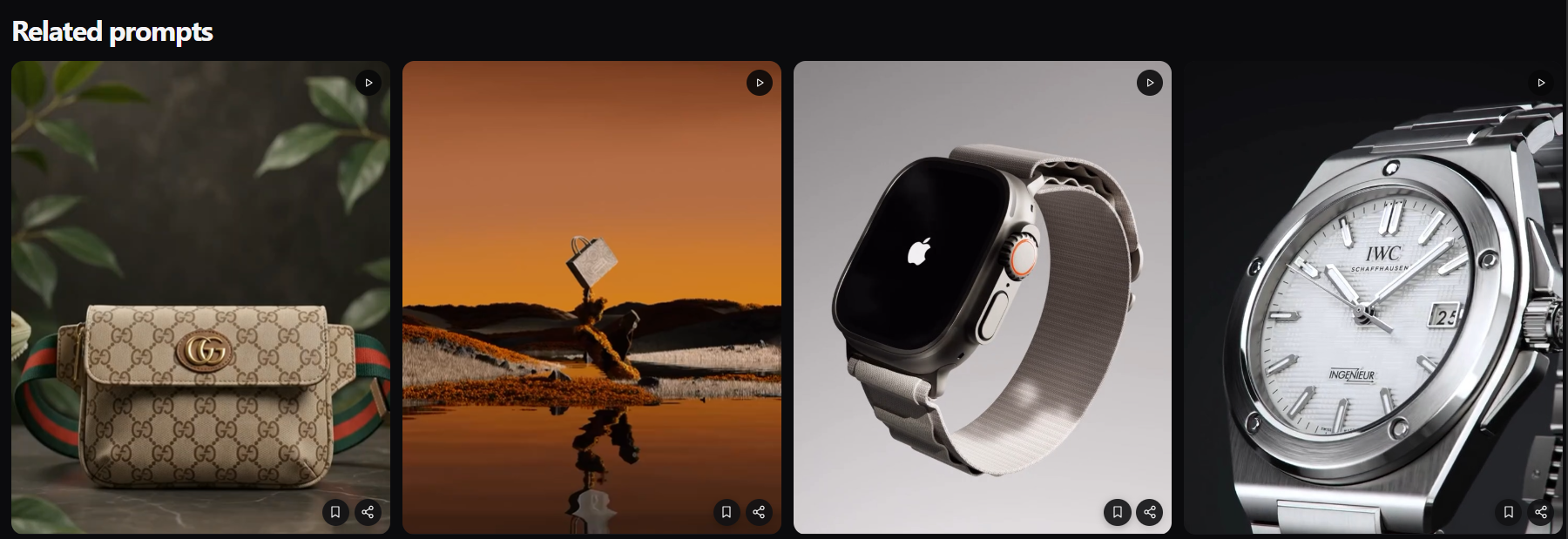
8. Explore related prompts when an idea is almost right
Sometimes you'll find something that's close to what you want, but not quite there.
Instead of going all the way back to the beginning, look through the Related Prompts beneath the prompt page.
These can help you move through similar visual concepts and discover alternative compositions, styling choices or creative directions.
This is particularly useful during the inspiration stage, when you know the general look you want but haven't committed to one particular execution yet.
How should you use Pinitup?
There isn't one correct way to use a prompt library.
You might come to Pinitup because you already know exactly what you want to create. In that case, search can help you find a prompt that gives you the technical and creative detail you need.
Or you might arrive without a finished idea at all.
In that case, Pinitup can work more like a visual inspiration library: browse, explore different creative directions and save the ideas that make you want to create something.
A useful workflow is:
- Start with the creative result you want.
- Search or browse for visual inspiration.
- Open the strongest reference.
- Study the composition and creative direction.
- Customise the parts relevant to your project.
- Add references when the prompt supports them.
- Copy the finished prompt.
- Generate, experiment and refine.
Find the shot. Copy the prompt.
Prompt engineering doesn't have to begin with a blank page.
Pinitup helps shorten the distance between seeing an idea and actually creating it.
Find the visual direction you want. Understand what makes it work. Customise the important details. Copy the prompt and start creating.